Business Object Mappings
Once a Business Object Interface is created, you can create Business Object Mappings to map the interface attributes to data.
|
Business Object Mappings Example |
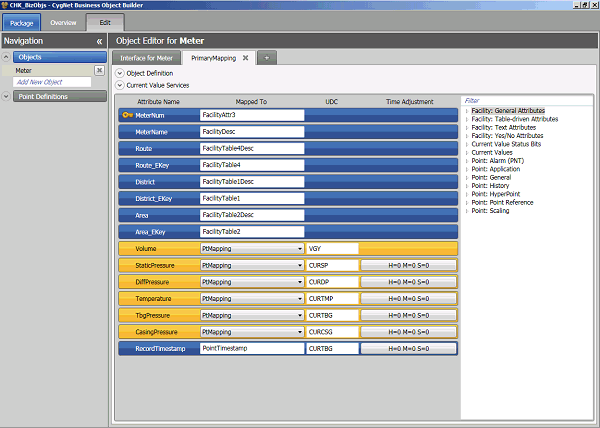
A Business Object Mapping allows translation between the Business Object Interface and the internal CygNet SCADA data model. It defines the mappings between a set of internal SCADA data attributes and their corresponding external enterprise data attributes, as declared in a specific Business Object Interface.
For each enabled Business Object Interface, the Enterprise Operations EIE must have one, or more, associated Business Object Mappings. Once a Business Object Mapping is associated with a Business Object Interface, the EIE is able to translate related data from the internal SCADA data model to the external enterprise data model.
The following sections provide additional information about Business Object Mappings.
- Mapping Simple Attributes
- Mapping Point Definition Attributes
- Elements of the Business Object Mapping Interface
- Creating, Editing, Copying, and Deleting Business Object Mappings
Mapping Simple Attributes
Every simple attribute of the Business Object Interface can be mapped in the Business Object Mapping. Facility attributes or "flattened" point attributes can be mapped to simple attributes.
Mapping the Unique Key
Every Business Object Mapping must have a Unique Key defined. The unique key defined in the Business Object Interface can be mapped to one or more Facility Attributes.
Note: Unique keys may not be mapped to flattened point attributes.
Mapping Point Definition Attributes
Object Interface Point Definition Attributes support mapping to the internal SCADA data model. The Object Mapping for a Point Definition includes:
- The target Object Interface Point Element name
- The target Point Mapping name
- The Uniform Data Code (UDC)
- The Point-in-Time (PIT) time adjustment details (Optional)
Flattening Point Attributes
A Business Object Mapping allows the administrator to "flatten" a point or real-time record attribute. This is an option allowing mapping of data from a point record to a simple attribute in appropriate circumstances.
Example
There is a simple attribute on a "Valve" business object interface called "ValvePosition" but there is no simple or facility attribute in the SCADA data model indicating the valve position. There is however a point attribute with the UDC "VALVEPOS" which could provide the data. This point can be "flattened" to map "VALVEPOS" to the "ValvePosition" simple attribute.

Elements of the Business Object Mapping Interface
Elements of the Business Object Mapping interface include the following.
- Object Definition
- Current Value Services
- Attribute Name
- Mapped To
- UDC
- Time Adjustment
- Filters
- Point Definitions
Object Definition
The Business Object Mapping must include a definition of the Business Object in terms of native CygNet constructs.
|
Object Definition |
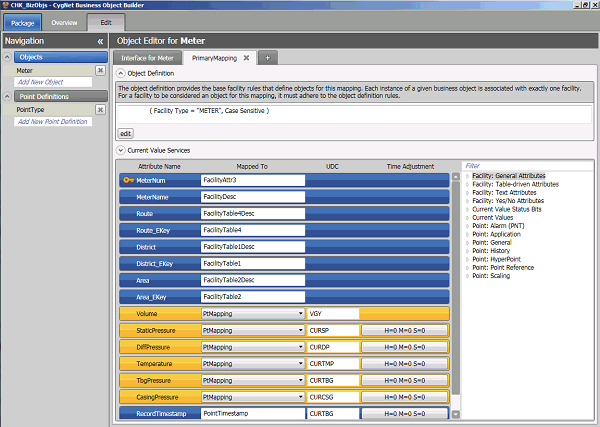
These parameters allow the Enterprise Operations EIE to evaluate the state of SCADA entities (facilities, points, etc.) before representing them as valid instances of a Business Object.
Example
A definition parameter on a "CompressorStation" object might assert that a "FacilityType" must equal "COMPSTAT" in order to be considered a valid "CompressorStation" object.
Current Value Services
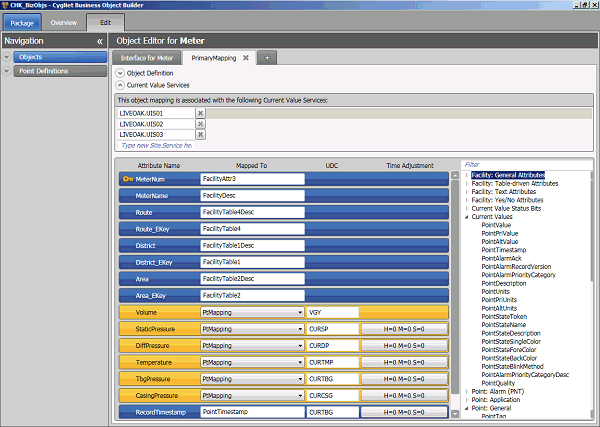
Only Services purposely added to the Business Object Interface are permitted to provide data for Enterprise Operations requests. Each Object Mapping is associated with specified Current Value Services. These Services are specified in the Current Value Services field of the Mapping page, as part of the Business Object Mapping. Services can be added in the format Site.Service.
|
CVS Field Mapping |
Attribute Name
The Attribute Name is the name of the attribute in terms of the enterprise data model. Attributes are either Simple or Point Definition, which determines configuration options available for the mapping of the element.
Mapped To
The Mapped To field indicates the SCADA data model point definition which is mapped to the Business Object Interface attribute selected.
UDC
Every Point Definition element defined in the Business Object Interface must have an associated UDC specified in the Business Object Mapping .
Time Adjustment
Time Adjustment is optional and allows configuration of history rollups. Clicking on the attribute's button in the Time Adjustment column displays the Configure History Rollup dialog box.
Note: Time Adjustment is not an option for all attributes.
|
Time Adjustment Field |
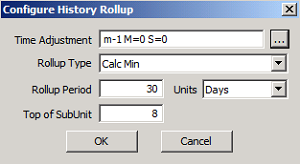
History Rollup Configuration Parameters
| Parameter | Description |
|---|---|
|
Time Adjustment |
Allows selection of Time Adjustments for configuration of History Rollups by browsing to Select Date and Time. Select Date and Time options are:
Note: If Relative Date/Time or Relative Day are used, the Current Time, Adjusted Time, and Relative Time will be displayed at the bottom of the dialog box, as configured by your selections. See Select Date and Time for more information. |
|
Rollup Type |
Allows selection of Rollup Type. Choices are: None, Calc Weighted Avg, Calc Mean, Calc Min, Calc Max, Calc Delta, Calc Last, Thin Median, Thin Last. See History Rollups for descriptions of Rollup Types. |
|
Rollup Period |
Allows selection of Rollup Period. Rollup Period refers to the quantity of specified Units in a specified period. ExampleTo rollup 30 days, the Rollup Period is "30" and the rollup Units is "Days." |
|
Units |
Allows selection of rollup Units. Choices are: None, Seconds, Minutes, Hours, Days. |
|
Top of SubUnit |
Allows selection of a Top of SubUnit offset from the normal date/time (generally midnight). This provides a method to allow for differences in start of day, time zone, or scheduling. ExampleIf you are using a rollup period of 1 day, and your data day starts at 8:00 A.M. (instead of midnight), you can offset the period by entering an "8" in the Top of SubUnit field. Note: This field uses 24-hour time. |
Select Date and Time
Date and Time can be configured as Absolute Date/Time, Relative Date/Time, or Relative Day, as illustrated.
|
Select Date and Time |
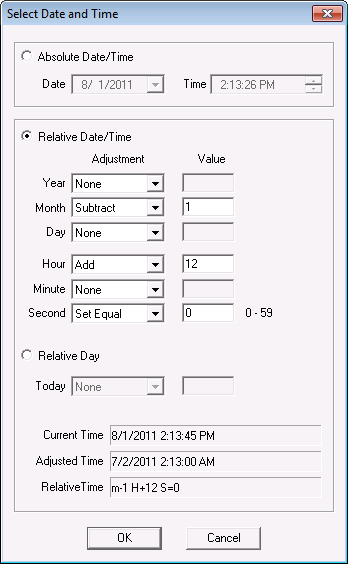
Business Object Mapping supports configuring a relative point-in-time (PIT) for Flattened Point Attributes, and for Point Definition Attributes. The relative offset supports days (d), hours (H), minutes (M), and seconds (S).
Example
A string element called "VolumeLastHour" could be mapped as follows.
- Interface Name = "VolumeLastHour"
- Point Attribute = "value"
- UDC = "CURVOL"
- PIT = "H-1"
Historical attributes can not be configured for point-in-time (PIT) time adjustments. For time t-n, an additional offset is necessary if there are mapped points in PIT mode, such as "LH" point.
Example
"LH" would become t-n-1.
Filters
Facility Filters can be applied to limit the amount of data shown. To apply a filter, click the Edit tab on the Object Definition dialog box. Options include Tree View and Text View.
See Using CygNet Filter Rules for a general discussion on using CygNet filter rules.
|
Facility Filter |
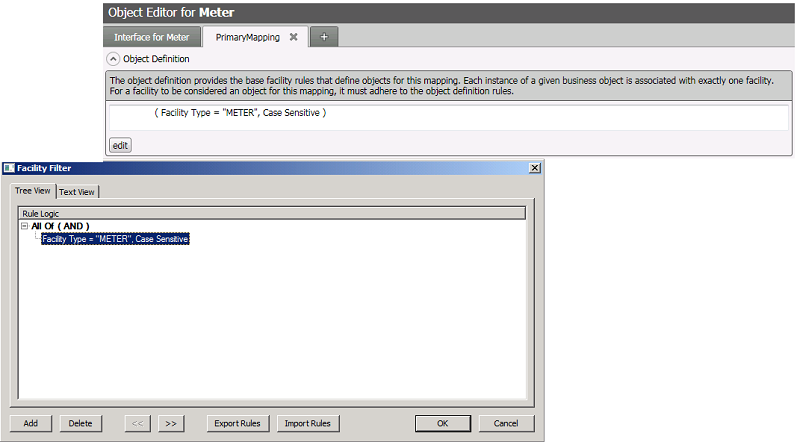
Rules can be added to or deleted from, and can be exported from or imported to, the Rule Logic in the Facility Filter dialog.
Rules
|
Rule Definition |
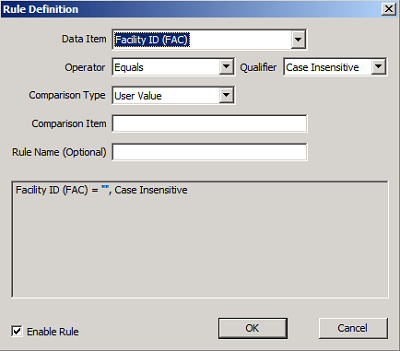
Rule Definition Parameters
| Parameter | Description |
|---|---|
|
Data Item |
Allows selection of a Facility Attribute Data Item for the rule. |
|
Operator |
Allows selection of a rule Operator. Choices are: Equals, Greater Than, Greater Than or Equal, Less Than, Less Than or Equal, Not Equal. |
|
Qualifier |
Allows selection of a rule Qualifier. Choices are: Case Insensitive, Case Sensitive, Integer, Real Number, Timestamp. |
|
Comparison Type |
Allows selection of a rule Comparison Type. Choices are: Reference Attribute, User Value. |
|
Comparison Item |
Allows a comparison value for the Data Item value.
|
|
Rule Name |
This parameter is optional. |
|
Enable Rule |
Allows selection/de-selection of the choice to Enable Rule. |
Point Definitions
A drop-down menu of available SCADA data point definitions appears in the farthest right pane of the Mapping page. Double-clicking an element in this list selects it for mapping to the selected attribute, and causes it to populate the Mapped To field.
Creating, Editing, Copying, and Deleting Business Object Mappings
To Create a New Business Object Mapping
- In the Business Object Builder window click the Edit tab to open the Interface Editor.
- In the Navigation pane select the Object for which you want to create a mapping.
- Click the + tab to open the Object Mapping Editor, and create the new mapping.
- Click on the down arrow to display the Object Definition dialog, and enter Import Rules to define the Business Object.
- Click on the down arrow to display the Current Value Services dialog, and enter one or more CVSs in the format Site.Service.
- In the Filter text box enter a Filter as desired to limit the amount of data shown.
- On the Attribute Name list, click on the device or facility attribute that you want to assign.
- Select a mapping for a Simple Attribute.
- Click in the Mapped To field to assign the corresponding point definition.
- In the Point Definition list in the right pane, double-click to select the point definition that you want to assign. It will appear in the Mapped To field.
- Select a mapping for a Point Attribute.
- Click to select the UDC field and type in the UDC of the point definition to which you want to map the attribute.
- Click to select the <Current> button to configure History Rollup, if desired.
- Double-click on the Mapping tab and type in the name of the new mapping.
- Click Save.
To Edit a Business Object Mapping
- In the Business Object Builder window click to select the Edit tab to open the Interface Editor.
- If the Objects list is not already displayed in the Navigation pane , click on the down arrow to display the list of objects.
- Click to select the Object for which you want to edit a mapping.
- In the Object Editor pane click to select the Mapping page you want to edit.
- Click to select the Attribute Name for which you want to edit the mapping.
- On the Mapped To list, change the value as desired by clicking in the text box and then double-clicking the new mapping selection from the Point Definition list in the right pane. The selection will appear in the Mapped To field.
- Repeat for any additional mappings you wish to edit.
- Click Save.
To Copy a Business Object Mapping
Copying a Business Object Mapping can be achieved by exporting the mapping with a new file name, and then importing the new file back into the mapping.
See File Import and Export Options for more information.
To Delete a Business Object Mapping
- In the Business Object Builder window click the Edit tab to open the Interface Editor.
- If the Objects list is not already displayed in the Navigation pane , click on the down arrow to display the list of objects.
- Click to select the Object for which you want to delete a mapping.
- Click to select the Mapping page for the mapping you want to delete.
- Click the X on the side of the Mapping page to delete the mapping.
- It the Point Mapping is currently in use by an Object Mapping Attribute, a dialog box will be displayed indicating the dependencies, and the Mapping will not be deleted.
- If the Point Mapping does not have active dependencies, the Delete Confirmation dialog box will be displayed. Click Yes to confirm deletion of the Mapping.

